
Table of Contents
Shopify Plus empowers fast-growing brands with the digital infrastructure to scale quickly, offering powerful tools for store management, seamless checkout, and extensive customization. Its flexibility and extensibility make it a popular choice for all sizes of organization, including notable brands like Nestlé, Hasbro, and The Economist.
However, while Shopify excels at creating eye-catching storefronts and streamlining ecommerce ops, its limited authentication options force merchants into a difficult choice: accept higher cart abandonment from friction-heavy logins, or risk account takeovers from weaker security measures. By default, Shopify relies on simple email-password logins with limited support for modern features like passwordless login, multi-factor authentication (MFA), and enterprise SSO.
As of February 2026, Shopify Legacy Customer Accounts have been deprecated, further limiting built-in auth options. Now, companies running on Shopify may need to make adjustments to maintain (or add) secure, user-friendly auth functionality.
This blog covers everything you need to know about Shopify Auth in 2026:
How Shopify Plus auth has changed and why it matters
Why Descope is the ideal auth solution for Shopify Plus
How to set up Descope as an OIDC provider for Shopify
How Descope for Shopify impacts popular auth use cases
How to future-proof Shopify Plus auth after legacy deprecation
Shopify Plus authentication changes (and why they matter now)
Shopify is updating its customer accounts across the board. Now, all new stores must use the updated version of customer accounts. All legacy accounts will be updated, all legacy liquid templates will be locked and removed, and a full sunset date will be announced.
One of the biggest auth changes is that all new Customer Accounts will be passwordless and API-driven by default rather than relying on password-based logins.
New Customer Accounts will have the following native authentication options:
Email-based one-time passcodes (OTP)
Social login (e.g., Google, Facebook)
Shop login (a proprietary passwordless option)
Connecting an OAuth/OIDC Identity Provider (IdP)
Advanced capabilities like passkeys, enterprise SSO, and custom auth logic will require integrating an OAuth and/or OpenID Connect (OIDC) provider. Multipass is tied to legacy architecture and is already unsupported on new Customer Accounts.
Any store that has migrated off legacy has already lost Multipass functionality. Stores still on legacy accounts can continue using Multipass until the sunset date, but migration and Multipass are mutually exclusive. OAuth/OIDC is the replacement path for the extensibility that Multipass previously provided.
Teams with homegrown authentication systems will now face a difficult choice: They’ll need to rebuild their systems to support OAuth/OIDC, or adopt an external IdP that can bridge Shopify and existing auth—without a full rewrite.
There’s complexity involved in revamping systems from the ground up. For teams that choose this route, unifying auth across apps will be difficult under the new model.
Why Descope for Shopify Plus
Shopify’s deprecation of legacy accounts is part of an overall upgrade to its auth infrastructure. The platform’s built-in auth used to rely on basic, password-based logins—a high-friction method vulnerable to credential stuffing attacks.
This constraint can directly impact your bottom line through:
Higher cart abandonment: 42% of consumers said they’d abandoned a purchase because of a forgotten password.
Increased fraud risk: Passwords are inherently vulnerable, and with 78% of people reusing credentials on at least one account, much of the risk is out of your control.
Lost revenue: Customers who abandon their carts from auth friction don’t convert. Similarly, forcing customers to create accounts can lead to drop-offs.
Limited cross-selling: Fragmented customer identity means more friction moving between multiple storefronts or sub-brands—and fewer cross-selling opportunities.
Shopify Plus offers modern auth options, but advanced use cases, like passkeys, SSO, and custom logic, still require an external provider.
Descope augments Shopify’s basic auth with passkeys, advanced passwordless SSO, and unified identity across storefronts without heavy dev work. The benefits include reduced cart abandonment, increased retention, and better protection against fraudulent transactions.
With Descope as an OAuth and OIDC provider, you can leverage powerful auth without leaving the ecommerce framework of Shopify Plus.
Setting up Descope as an OIDC provider
To enhance auth on your Shopify Plus storefront, you can configure Descope as an OAuth and OIDC provider. This setup allows Shopify to delegate authentication to Descope, enabling features like passwordless login, social sign-ins, and multi-factor authentication (MFA) without disrupting the user experience. In this section, we’ll walk through the steps to integrate Descope with Shopify Plus, ensuring a secure and smooth login process for your customers.
For a fully native experience, we recommend creating a new page on your Shopify store, and adding the Descope flow component to it. You will later configure this page to be your “Flow Hosting URL,” so when a user logs in, the OIDC process will take them to this page.
Make sure not to link directly to this page anywhere on your store, as the authentication flow will only work when initiated using OIDC, and not when accessed directly.
First, create a new page in Shopify, and add custom liquid to the part of the page where you would like to put your authentication flow.
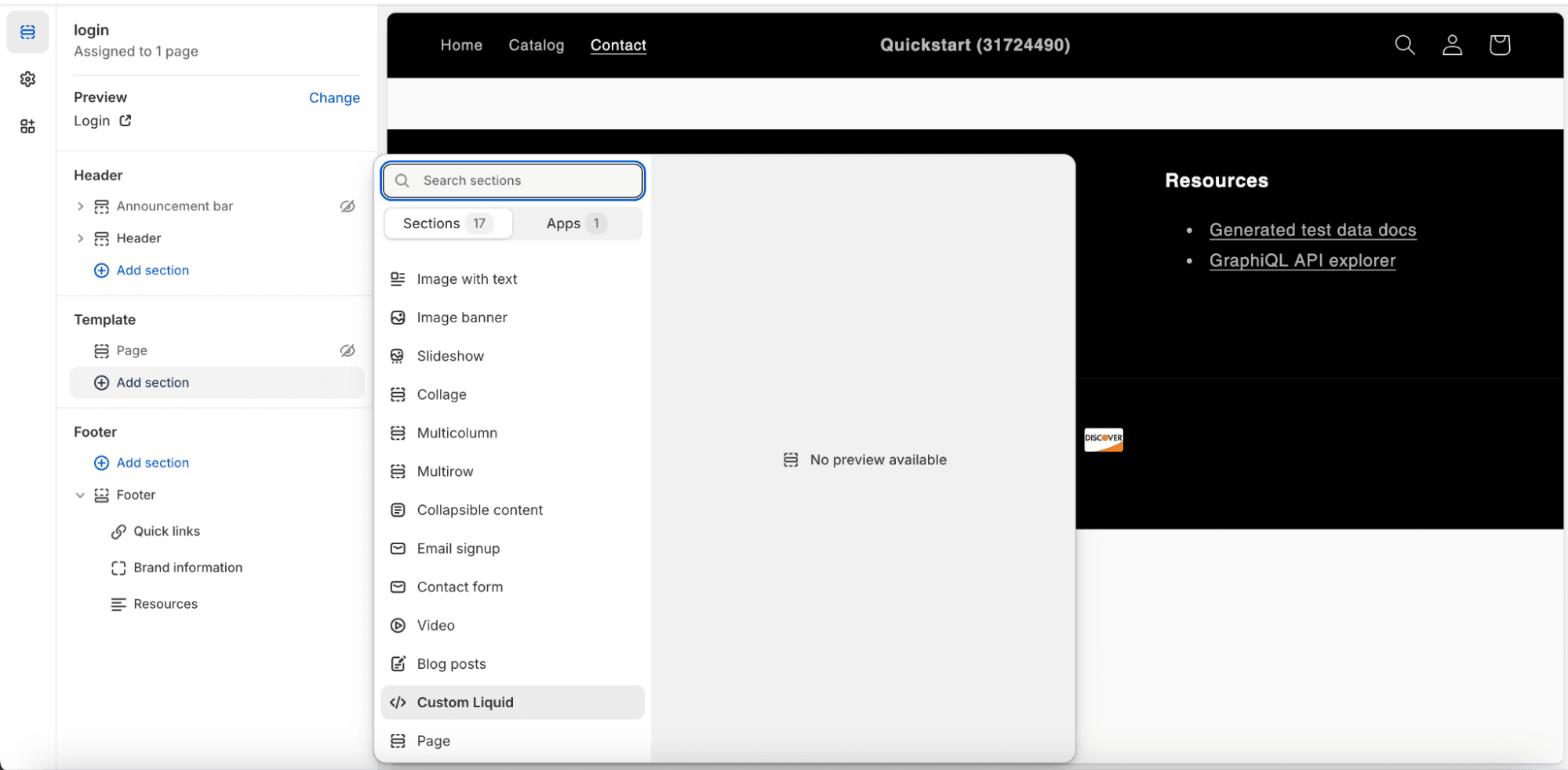
Then, in the custom liquid code field, add the following, making sure to replace <YOUR-PROJECT-ID> with your Descope Project ID, and <YOUR-FLOW-ID> with the ID of the Descope authentication flow you want to run:
<!DOCTYPE html>
<html>
  <head>
	<script src="https://descopecdn.com/npm/@descope/web-component@3.21.0/dist/index.js"></script>
	<script src="https://descopecdn.com/npm/@descope/web-js-sdk@1.16.0/dist/index.umd.js"></script>
  </head>

  <body>
    <p id="container"></p>

	<script>
		const sdk = Descope({ projectId: '<YOUR-PROJECT-ID>', baseUrl: 'https://api.descope.com', persistTokens: true, autoRefresh: true });

		const sessionToken = sdk.getSessionToken()
		var notValidToken
		if (sessionToken) {
			notValidToken = sdk.isJwtExpired(sessionToken)
		}
		if (!sessionToken || notValidToken) {
			var container = document.getElementById('container');
			container.innerHTML = '<descope-wc project-id="<YOUR-PROJECT-ID>" base-url="https://api.descope.com" flow-id="<YOUR-FLOW-ID>"></descope-wc>';
			const wcElement = document.getElementsByTagName("descope-wc")[0];

			const onSuccess = (e) => {
				// You need to refresh the token here for auto refresh to work.
				sdk.refresh();
			};

			const onError = (err) => {
				// Print any errors to the console
				console.log(err);
			};

			// Add event listeners for onSuccess and onError
            wcElement.addEventListener('success', onSuccess)
            wcElement.addEventListener('error', onError)
		}
	</script>
  </body>
</html>
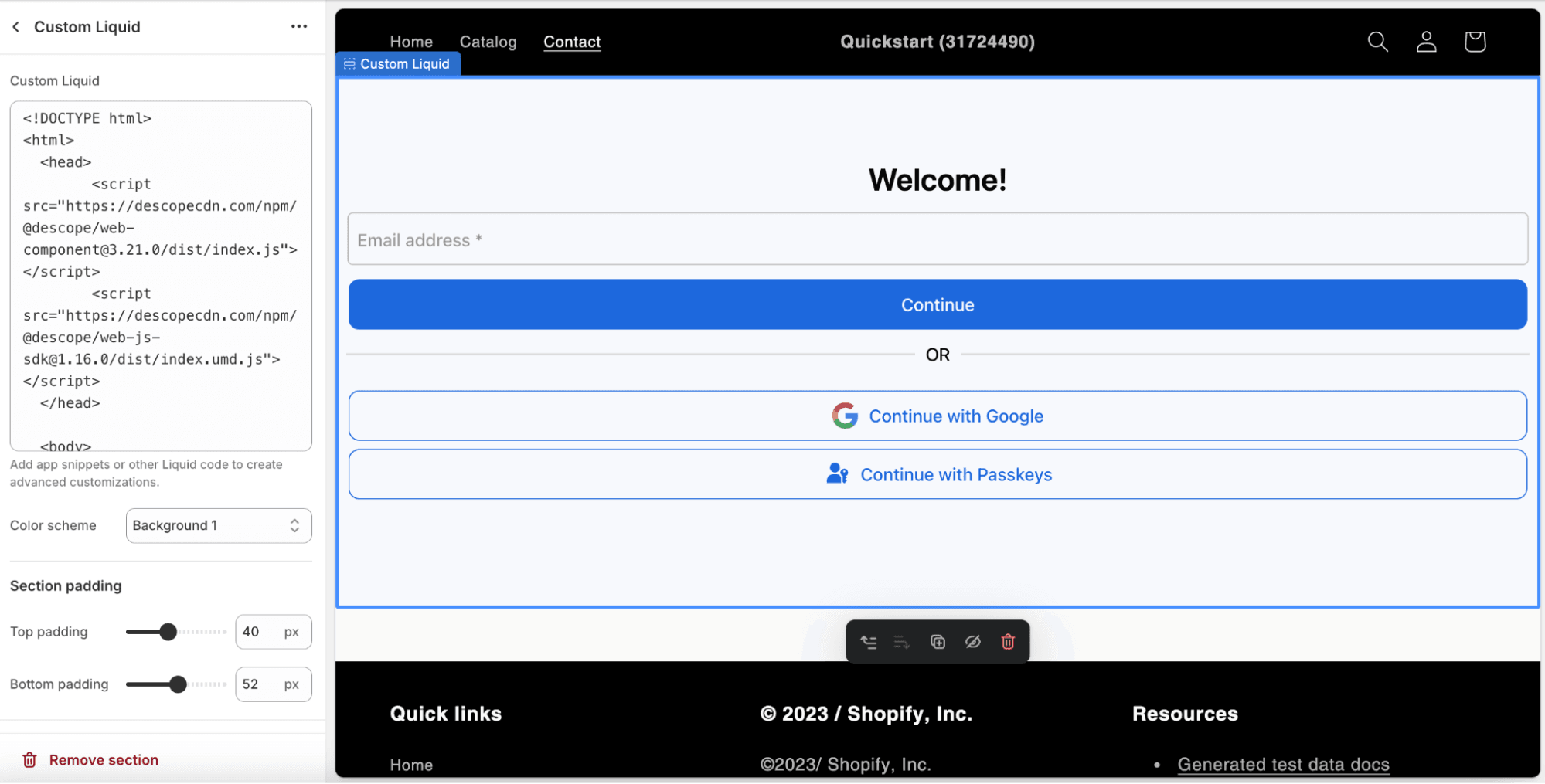
Adding the above code snippet should result in a page that resembles the image below.
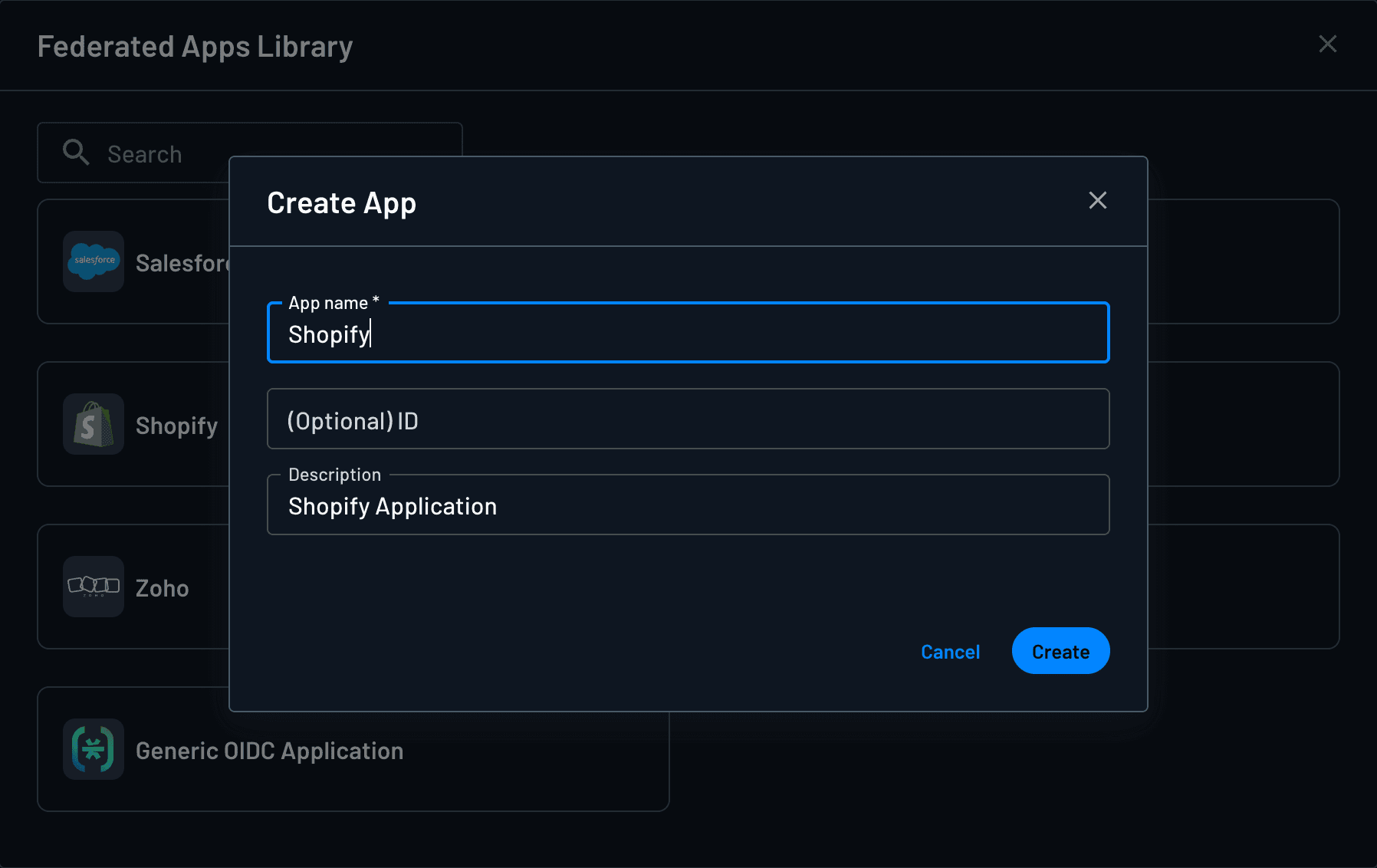
Now that we have a place to host the flow, we’ll create an OIDC Application in Descope. Navigate to the Federated Apps tab of your Descope Console, and select +App. Select “Shopify”, and click Create.
Now, under the Advanced tab, set the “Flow Hosting URL” to be the URL for the Shopify page you added the Descope flow component to.
You will use the configuration details from this new Shopify OIDC Application when setting up Descope as your Identity Provider in the Shopify console.
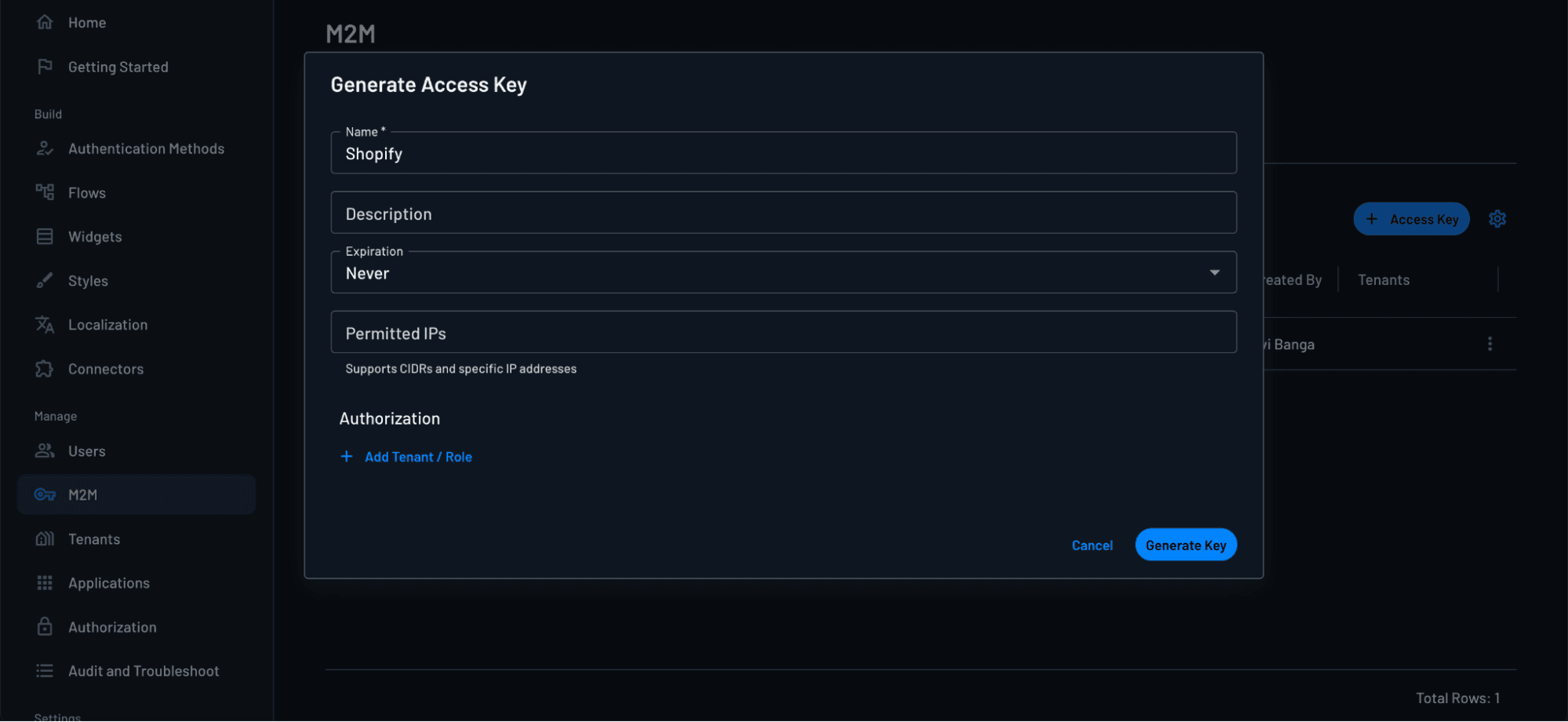
Next, create an access key on the Access Keys Page of the Descope Console. After generating the key, make sure to save its value to be used in the next step.
Now, let’s add Descope as the Identity Provider to your Shopify store. Within Shopify, navigate to Customer Accounts > Identity Provider > Manage. If you don’t see this option, make sure you have a Shopify Plus account, and that Multipass is enabled if you are using Legacy customer accounts.
Select Connect to provider, and name the provider “Descope”.
Now, enter the following fields into the application info configuration:
Well-known or discovery endpoint URL: This is the Discovery URL from the Descope Shopify Application
Client ID: Descope Project ID
Client Secret: The Access Key you just created
Additional scopes: add profile
Post-logout redirect URI parameter name:
post_logout_redirect_uri
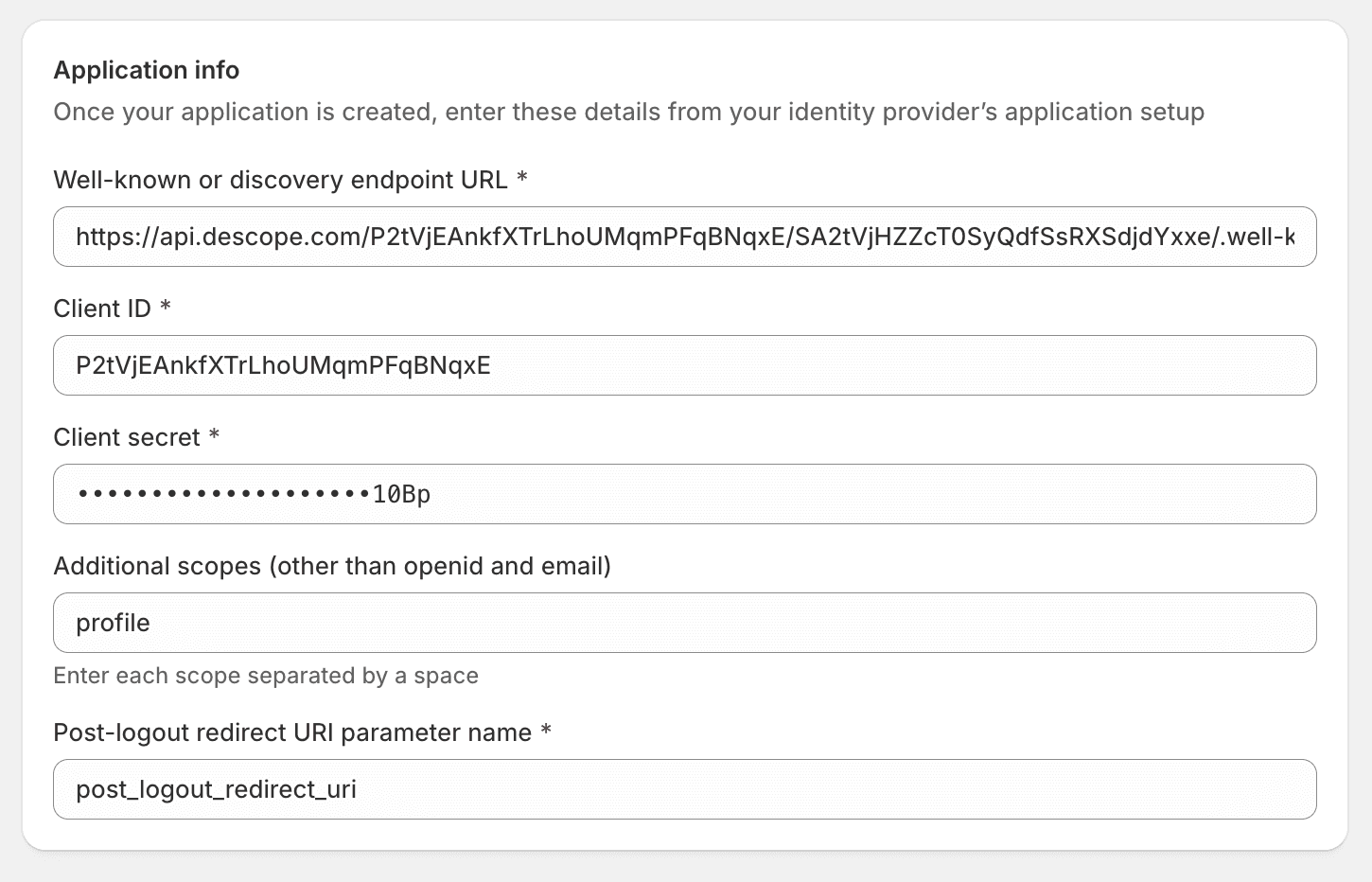
After entering the Descope configuration details, Shopify allows you to test the configuration before activating Descope as the Identity Provider. You’ll be able to experience the login flow as your users will on your site.

Use case: magic link and passkeys
A seamless authentication experience can improve conversion rates and user satisfaction. With Descope, you can allow customers to log in using passwordless magic links or passkeys. This is especially important as adding an OAuth/OIDC provider is the only way to implement advanced auth methods with new Customer Accounts.
To add these features, we’ll create a Descope flow with magic link and passkey authentication methods and change our OIDC application’s flow hosting URL to point to our new flow.
Let’s start out with a template from our flow library. Select the "Sign Up Or In - Biometrics/Magic Link" option.
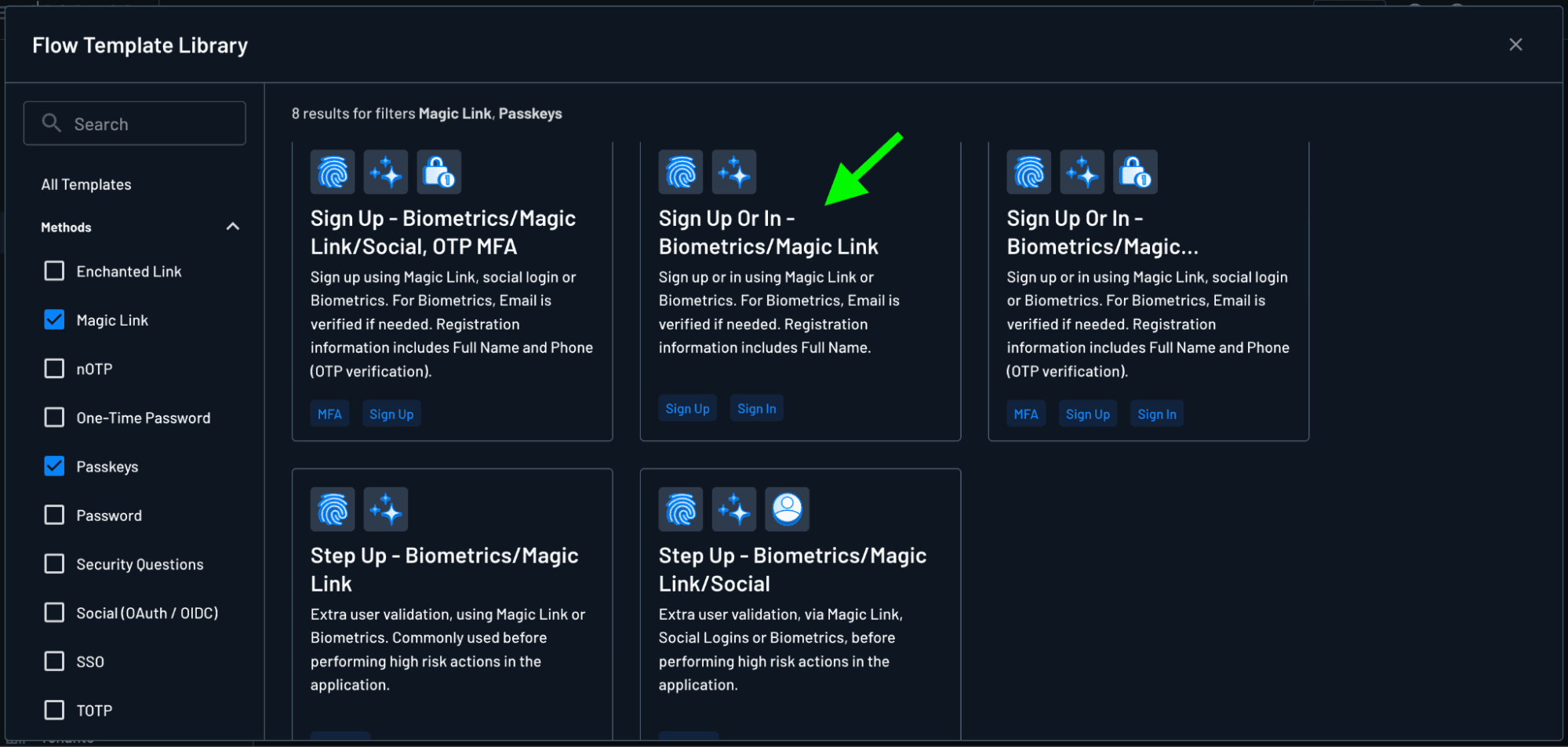
The "Create Flow" dialogue will appear. Hit Create to continue.
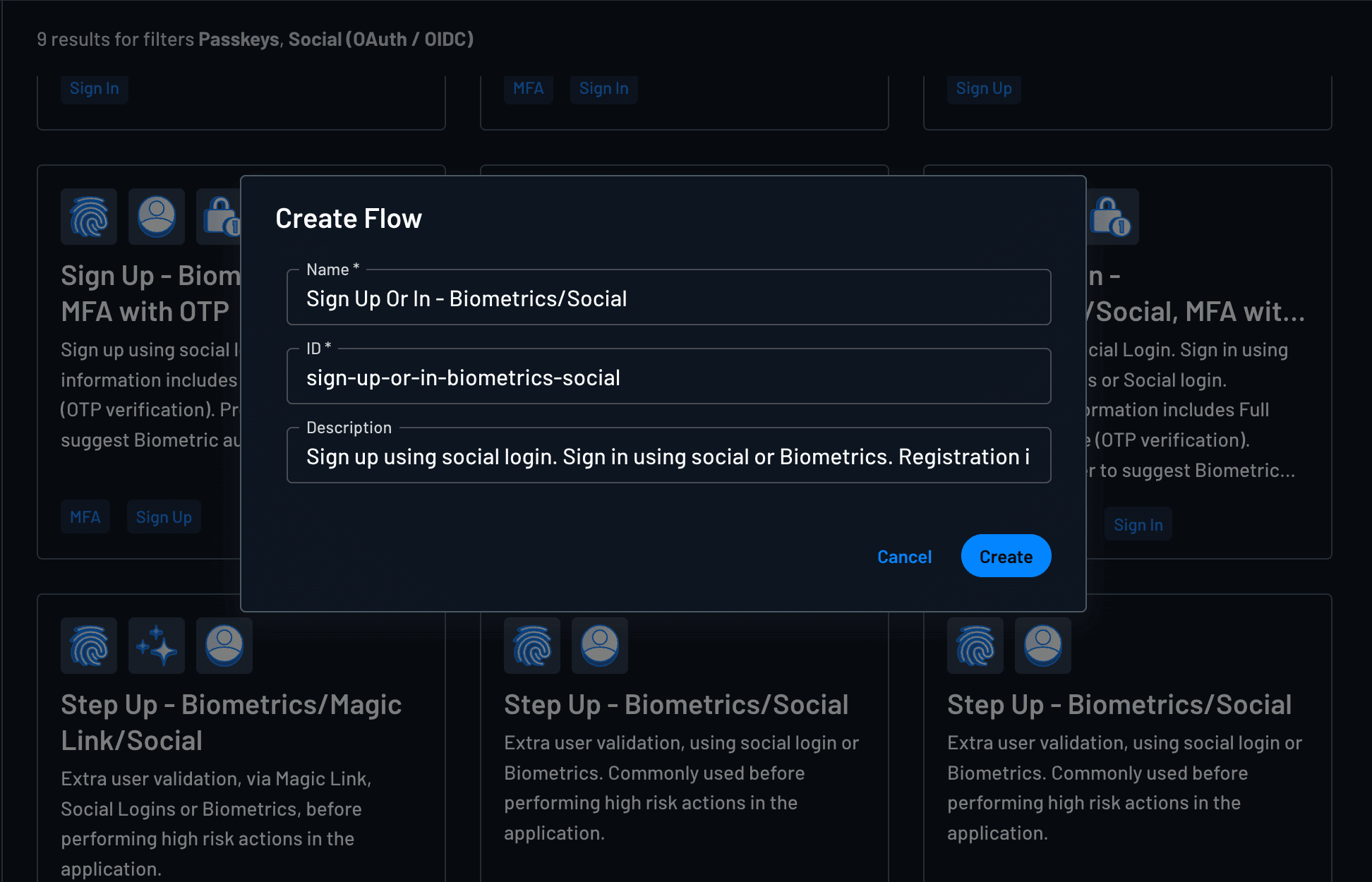
Now, after creating the flow, we can change the the Flow ID in the custom liquid on our login page to “sign-up-or-in-biometrics-magic-link ”
When we go back to our storefront’s login, we will be directed to our new magic link and passkeys login flow instead.
Use case: A/B testing
Customer preferences and needs change rapidly, and it can be difficult to keep up with what actually resonates with your users. Experiment with your authentication and user journey flows using A/B testing to determine which authentication journeys truly work best for your users.

To set up A/B testing in your flow, first create a condition with an A/B testing key. This will send half of your users to a screen with magic link as the primary authentication method, and half to a screen with passkeys as the primary authentication method.
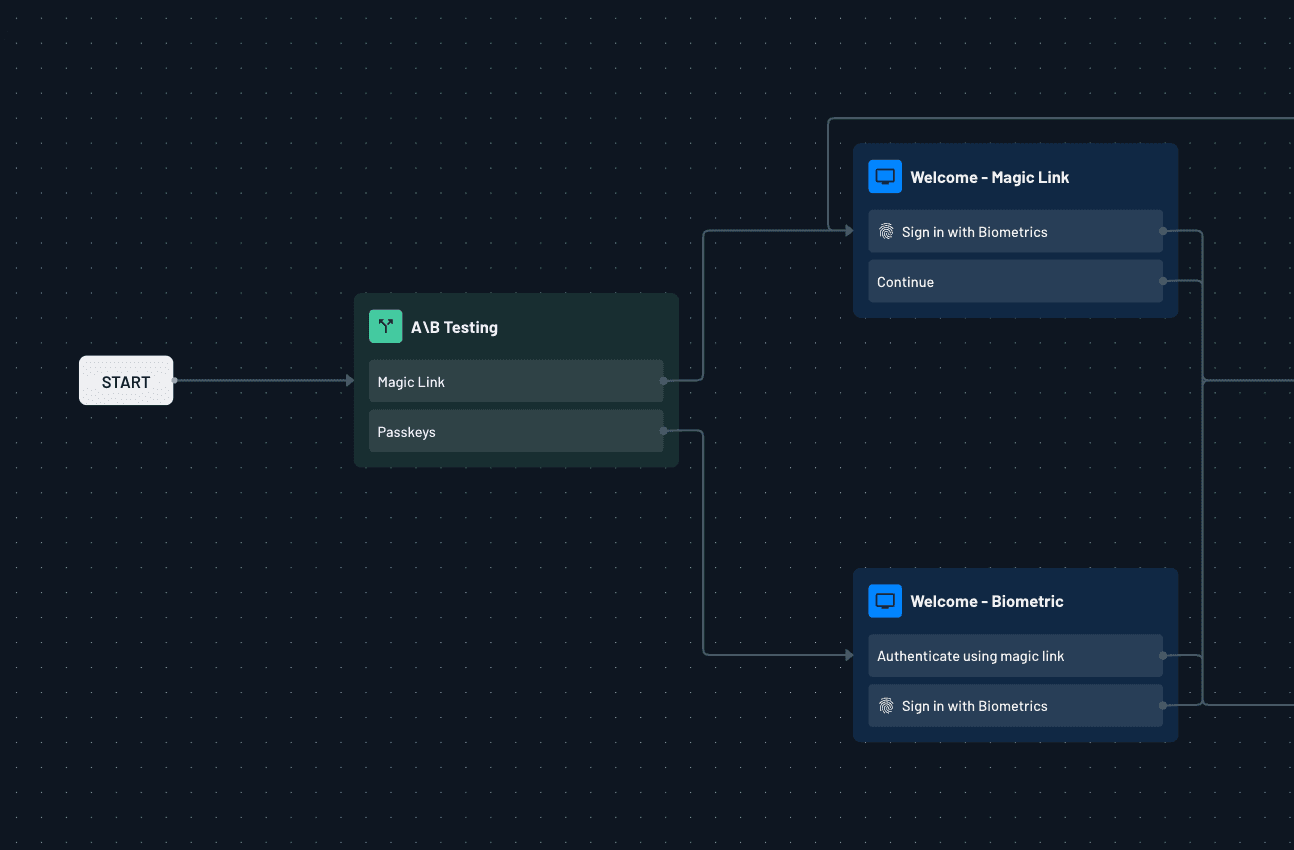
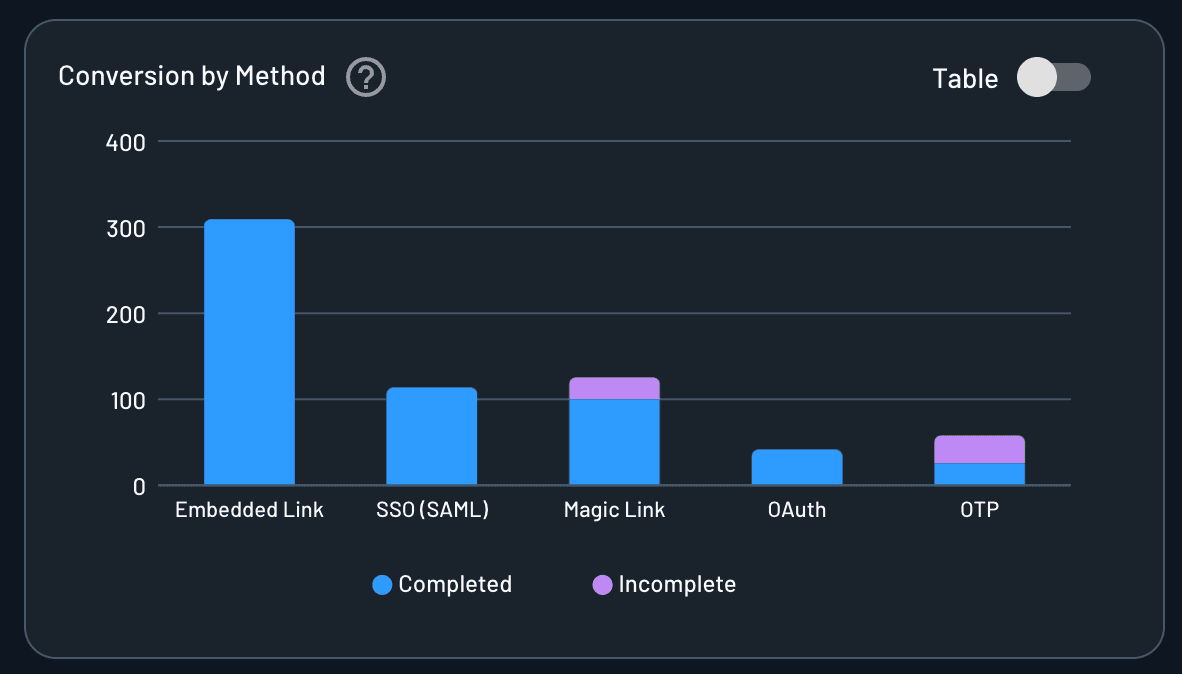
You can then leverage Descope’s flow analytics dashboard to see which method results in a higher user conversion rate, or the user activity dashboard to see conversion by authentication method, and adjust your flows accordingly.
Use case: unified auth for multiple sites
If you have both a main website and a Shopify store on the same domain, maintaining a unified authentication system ensures a smooth user experience. For organizations, unified auth across sites reduces friction, allows better cross-sell, and creates a unified customer view.
However, the limitations of new Customer Accounts make it challenging to unify auth across apps—unless you integrate an OAuth/OIDC provider.
Descope can act as a centralized identity provider across both platforms.
You can configure your Descope project to make the refresh token available across the subdomains for both your website and store. When a user logs into either your main website or Shopify store, a refresh token is stored on the main domain. Then, when the user clicks the login button on the second website, they will be automatically signed in.
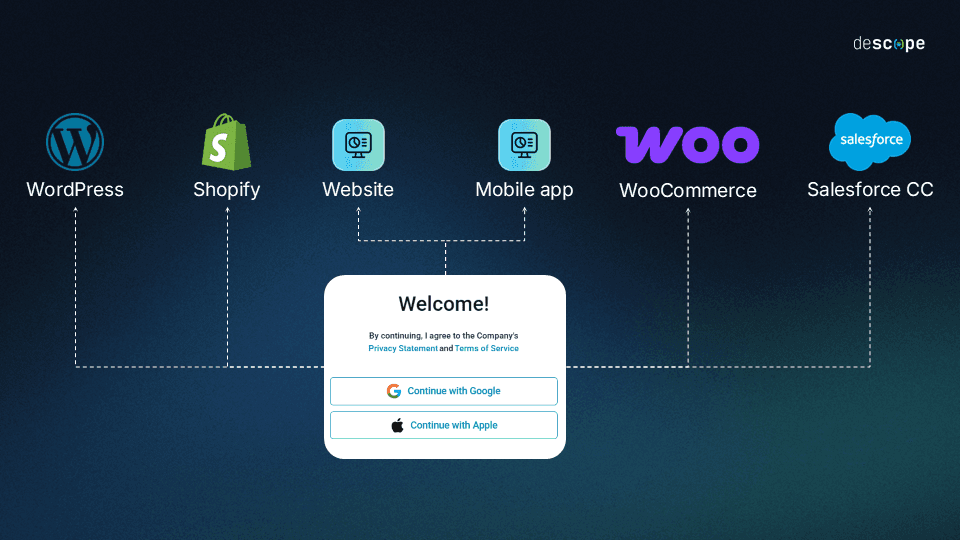
To do so, simply set up Descope authentication for your main website using our flows or SDKs. Because you’ve already set up Shopify to use the same Descope project as the OIDC provider, users will be able to authenticate seamlessly across both platforms.
Future-proofing Shopify Plus auth after legacy deprecation
The deprecation of legacy accounts is part of Shopify’s push toward more secure and frictionless auth. It’s now an API-first customer identity system, with storefronts adopting the proprietary Customer Account API. However, in many cases, OAuth/OIDC-based extensibility will be the gold standard for streamlined auth flows.
Approaches previously used for extensibility, like liquid templates and Multipass, will be phased out alongside legacy accounts. Shops that relied on these should consider adopting an OAuth/OIDC provider to acclimate smoothly.
Looking ahead, advanced auth use cases will increasingly rely on external IdPs.
This shift is due in part to the strengths of OAuth/OIDC, but Shopify’s native auth also has limitations that make external IdP provisions worth considering. Most importantly, there’s no support for advanced auth flows, like SSO, passkeys, and unified identity across apps and sites. External IdPs are a long-term architecture solution for scalable ecommerce identity.
Improving auth for more conversions on Shopify Plus
The recent deprecation of Legacy accounts in Shopify Plus means that Shopify’s native auth options are better than they used to be, but they still leave much to be desired.
Using Descope for your Shopify storefront authentication means going beyond Shopify's native options to reduce drop-offs, unify identity across properties, and deploy advanced auth without rebuilding from scratch. By integrating Descope as an OIDC provider, you can go beyond Shopify’s basic authentication system to improve conversions and reduce drop-offs. Whether you’re adding social login, passkeys, or a unified auth experience across your site and store, Descope’s integration with Shopify Plus gives merchants a faster path to secure, conversion-friendly authentication.
Sign up for a Free Forever account with Descope and start building secure, scalable auth flows today. Have questions about advanced auth for Shopify Plus? Book time with our experts.