
Table of Contents
Don't have the time to read the entire post? Our human writers will be sad, but we understand. Summarize the post with your preferred LLM here instead.
Hello Descopers! We’re delighted to share Outbound Apps with you today to enhance AI agent functionality while saving developer time. Outbound Apps provide an easy way to call scoped third-party APIs on users’ behalf, unlocking a variety of use cases including seamless AI agent connectivity to external tools, scalable integrations with multiple MCP servers, and automated social media engagement.
Outbound Apps are available for every developer to use, including on our Free Forever tier. Sign up, view the docs, and explore our sample app to get started.
For more on the Why, What, and How of Outbound Apps, keep on reading!
Making AI agents production-ready
Less than two-fifths of AI projects successfully transition into production. This is due to many factors including data quality, reliability, and hallucinations, but a big reason is that building real-world AI agents for consumers and businesses is hard.
Say you’re building a B2B AI agent for sales professionals that can message prospects (e.g. on LinkedIn), set up meetings (e.g. with Zoom and Google Calendar), and enter details in the CRM (e.g. into HubSpot) on users’ behalf. This means you’re now responsible for:
Setting up OAuth-based consent flows with these third-party tools
Managing and storing provider tokens
Keeping an eye on token refresh cycles
Figuring out which users have connected the AI agent with which tools
This effort multiplies with each new tool and each new AI agent, a prime example of the NxM problem. If you’re building three AI agents that each need to connect with five tools, the responsibility of creating and maintaining 15 integrations (at least) is now on your shoulders.
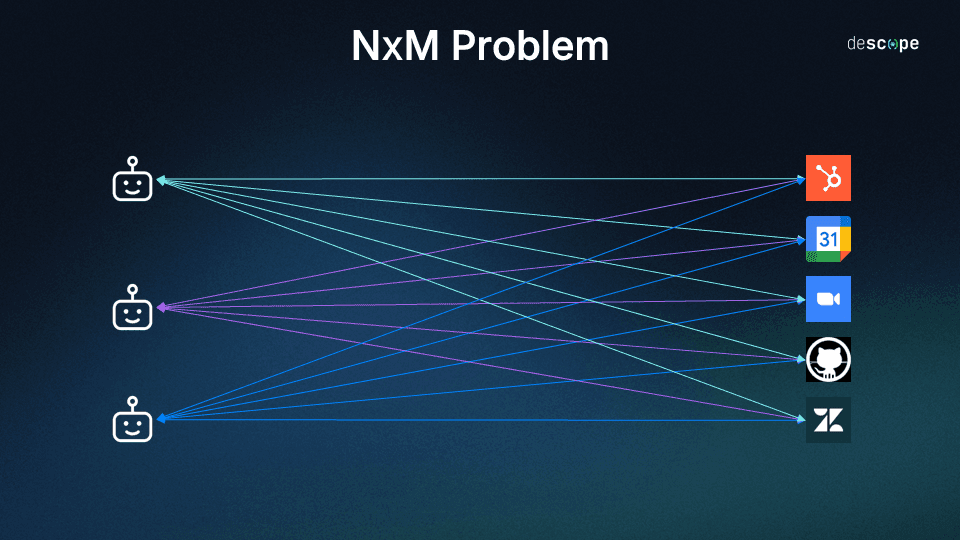
As AI agents make all our lives easier, the lives of AI developers shouldn’t get harder. Helping developers build and deploy powerful, production-ready AI agents requires freeing up their time from the hassles of tooling integrations and token management.
That’s where Outbound Apps come in.
Outbound Apps overview
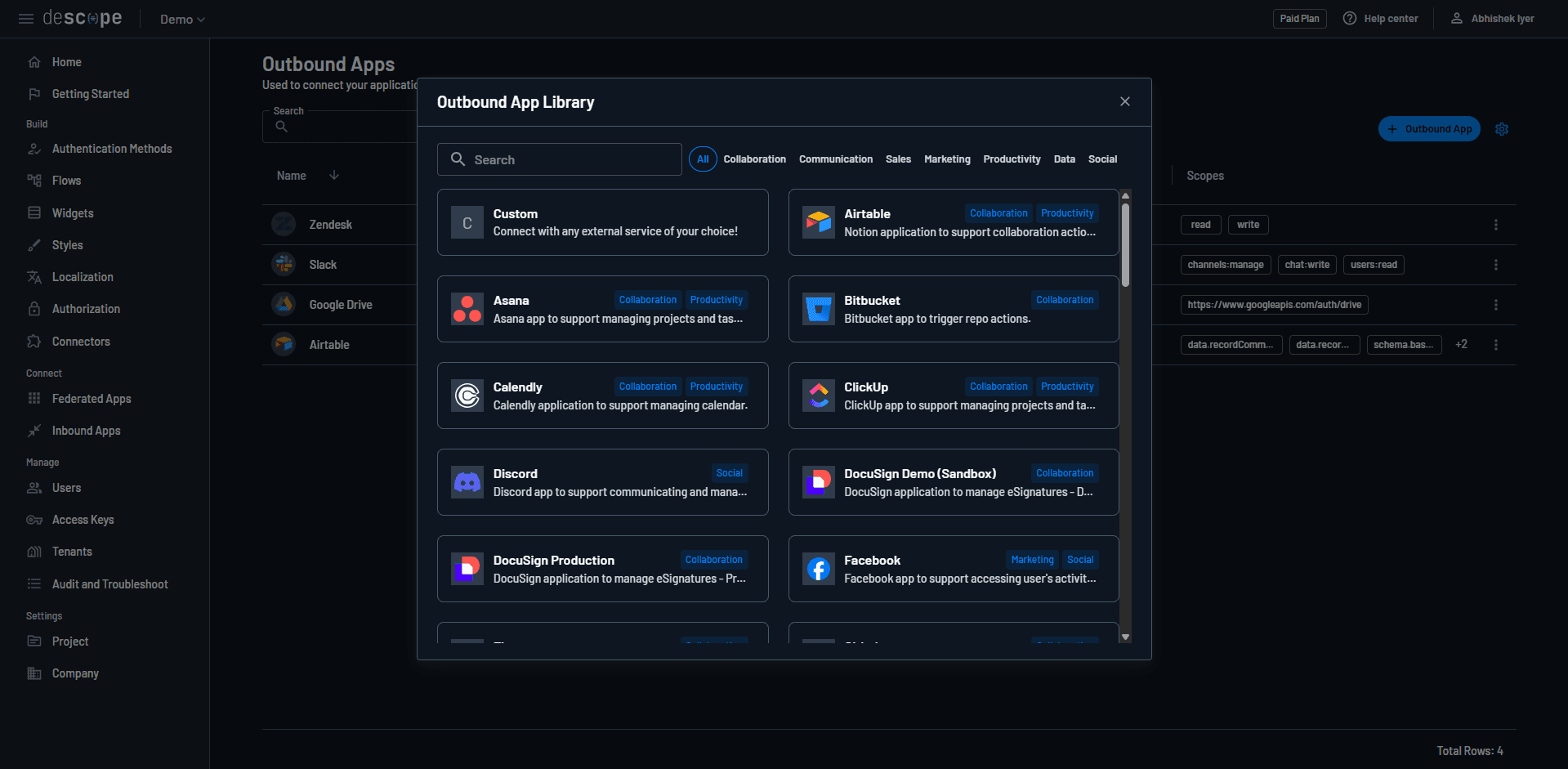
Outbound Apps are a simple and powerful way to connect AI agents with external tools and enterprise systems without the developer heavy lift. Using Outbound Apps, your app or AI agent can securely call third-party APIs on users’ behalf and request a greater level of access if and when needed, all while relying on Descope to manage and store provider tokens.
With Outbound Apps, you can:
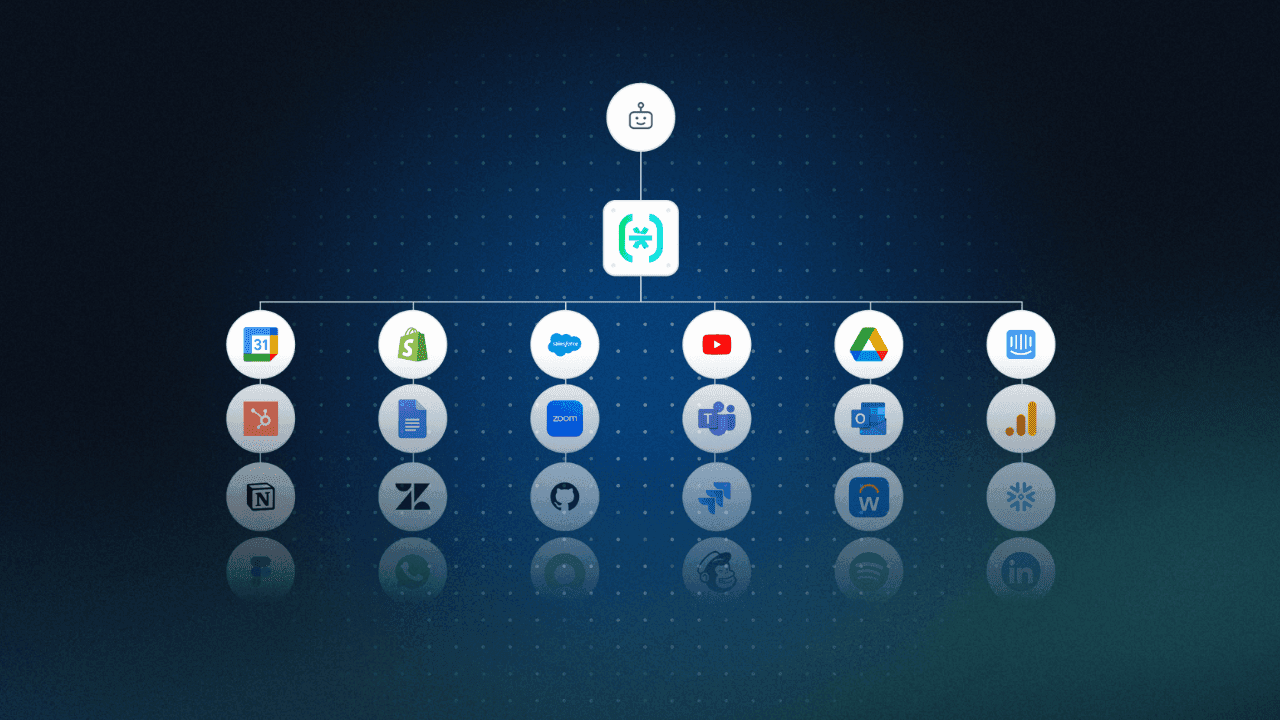
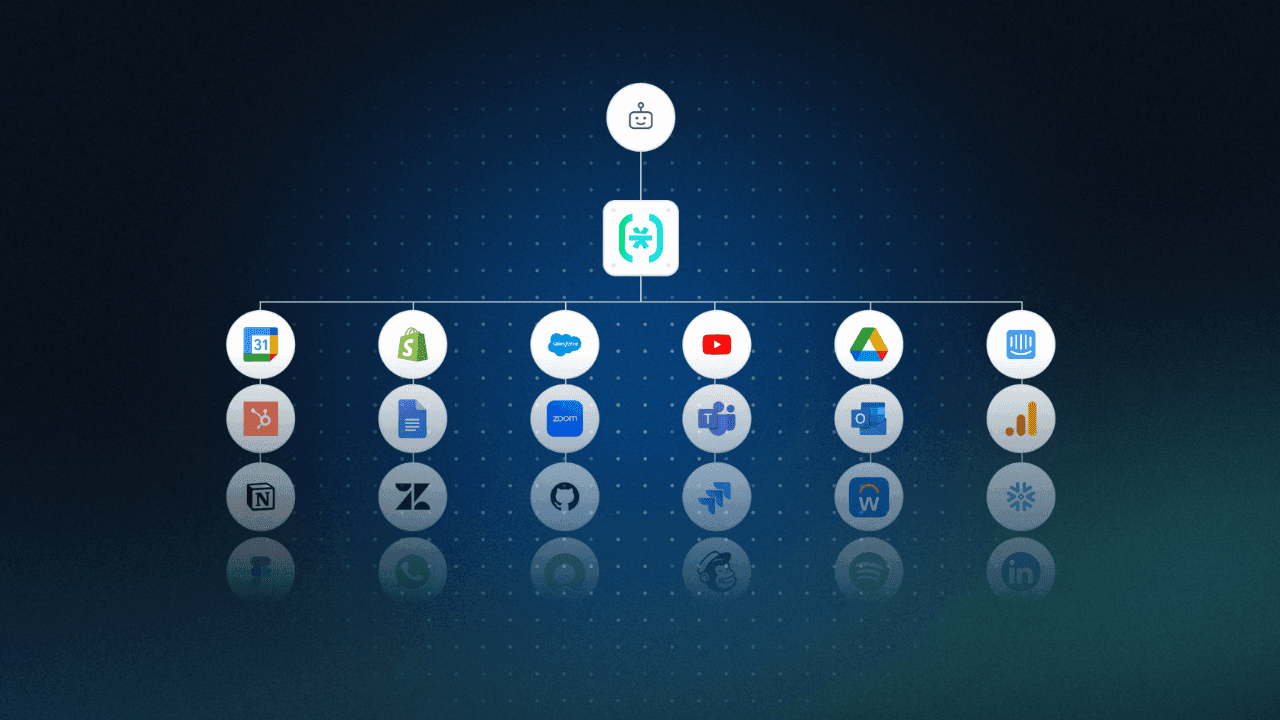
Connect your AI agent / app with 50+ external tools using prebuilt integration templates (e.g. HubSpot, Google Calendar, Zoom, GitHub, Zendesk)
Request data and scopes from third-party tools on users’ behalf
Progressively request more scopes for elevated access when needed
Store multiple tokens per user with different scopes, calling each token as needed
Store tokens at a tenant level so that tools have access to tokens granted to users within a specific tenant
View and manage all granted consents and associated user identity information
The video below shows our demo AI agent that uses Outbound Apps to connect with Google Calendar, Google Meet, and an internal CRM system to orchestrate data and actions across all these tools.
How it works
Here’s a simplified step-by-step flow of how Outbound Apps work:
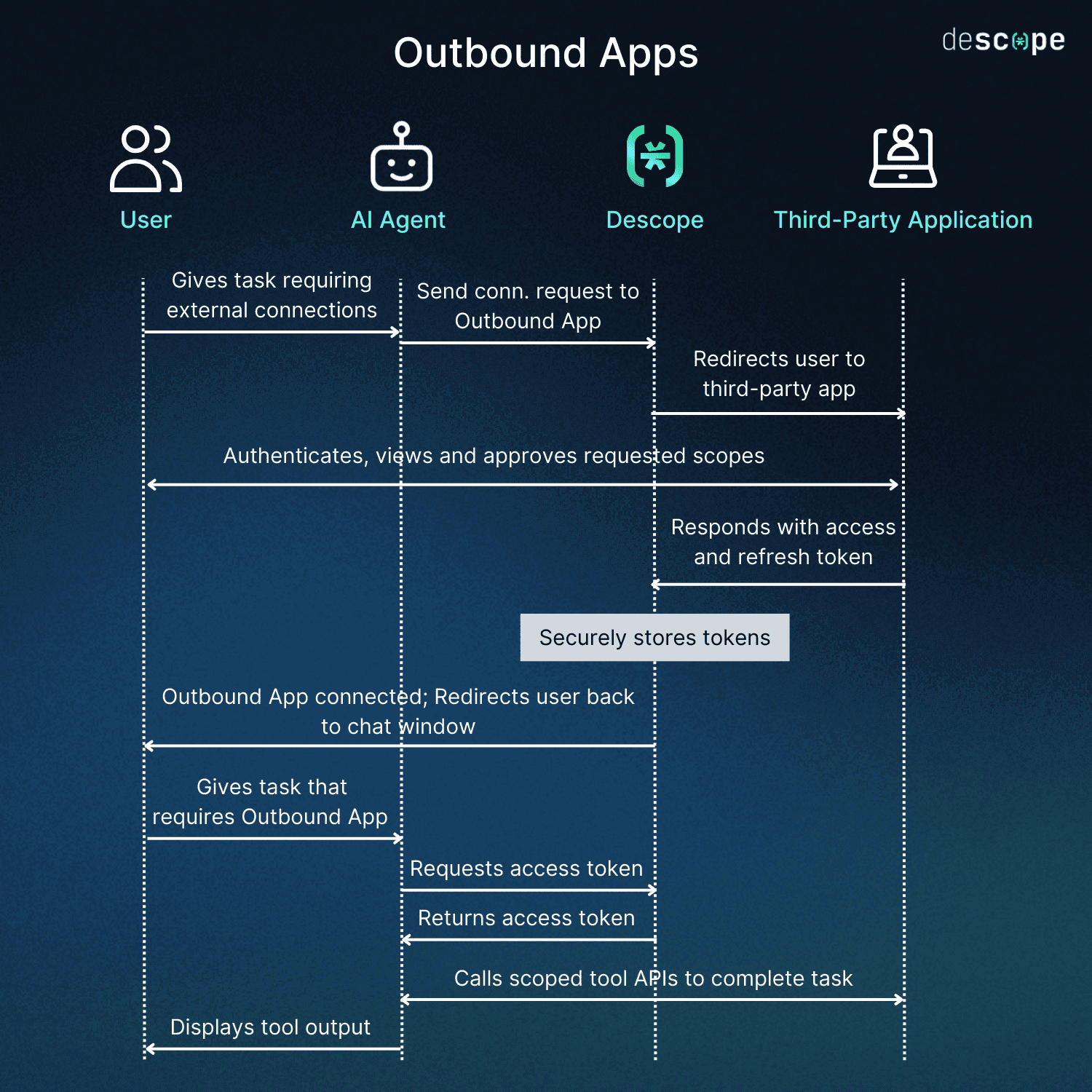
Connecting Outbound Apps
A user gives an AI agent a task that requires it to connect with a third-party application.
The AI agent sends a connection request to the respective Outbound App on Descope.
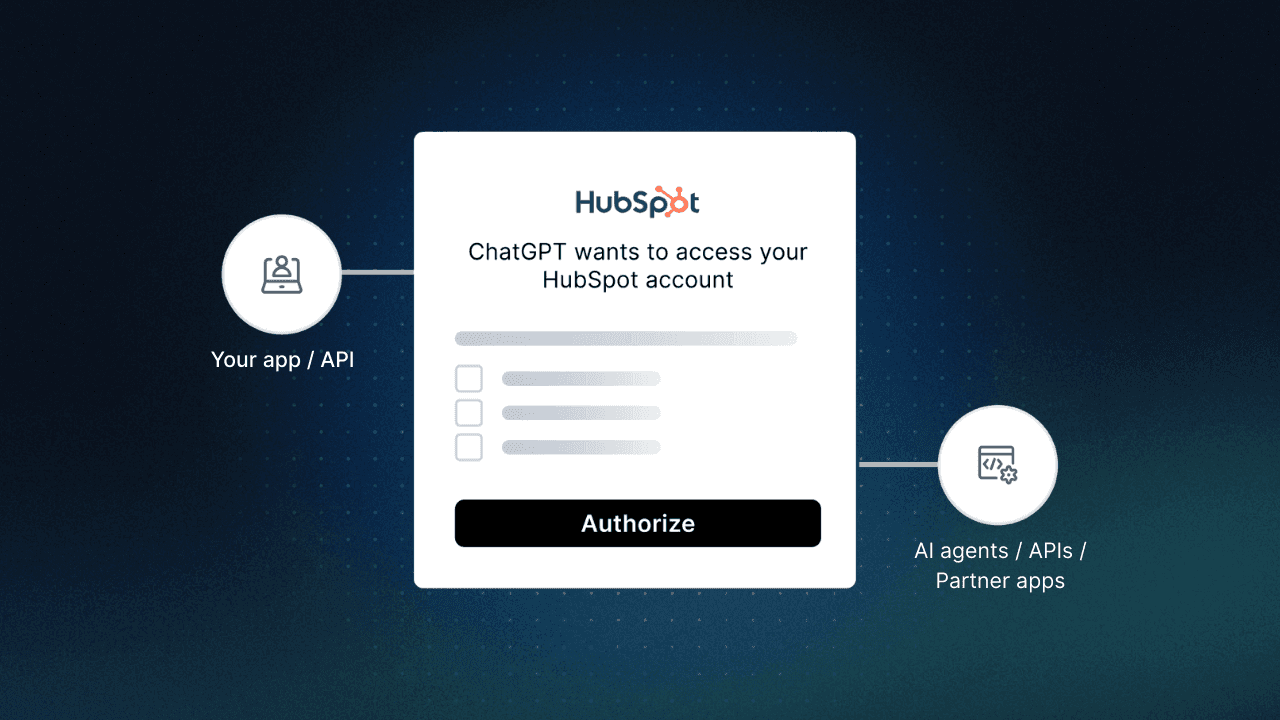
The user is redirected to the third-party app where they can authenticate (if needed) and review and approve the requested scopes.
The third-party app provides an access and refresh token which is stored securely in Descope.
The Outbound App is now connected and the user is redirected back to the AI agent chat interface.
Using Outbound Apps
A user gives an AI agent a task that requires it to use the same third-party app that was just connected using Outbound Apps.
The AI agent requests and receives the access token from Descope.
The AI agent uses the token to securely call the API of the third-party application using only the scopes granted by the user during the connection phase.
Once the AI agent completes its task, the requisite output is presented to the user.
Other Outbound Apps use cases
Outbound Apps unlock a variety of use cases apart from the standard AI agent tool-calling scenario. Other uses include storing multiple tokens per user with different scopes, storing tokens at a tenant level for B2B use cases, enriching user identities from different providers, and enabling MCP clients to programmatically connect with multiple MCP servers.
Getting incremental scopes
Giving an AI agent or app full write access to an external system on a user’s behalf is never warranted. Other entities–whether they be apps or AI agents–should always get access to time-bound and specific scopes as and when they are required.
Outbound Apps support storing multiple tokens per user with different scopes. This allows for “minimum viable” access to begin while providing the opportunity to request more scopes later. For example, a user logging in to your app using Facebook social login can grant minimal scopes (e.g. user ID, name, email). Later on in their journey, you can request more scopes such as reading the user’s posts, likes, or friends lists.
Enriched identities from multiple providers
Outbound Apps allows your app to enrich user identities and perform actions on their behalf on external systems even if those systems are not the identity provider.
Say you have Google social login as your app’s primary authentication method but you’d also like to collect their LinkedIn profile information. Creating a LinkedIn Outbound App enables you to easily request these scopes from users without touching the existing login experience.
Connecting MCP clients with multiple MCP servers
In many real-world applications, a single MCP client (such as an AI agent or assistant) needs to interact with multiple MCP servers, each exposing their own API and requiring unique OAuth tokens. This creates a complex problem: how do you securely store, manage, and rotate dozens (or hundreds) of server tokens while keeping your system maintainable and scalable?
Outbound Apps simplify this challenge by acting as a unified token manager across all MCP servers. Since each MCP server is just another OAuth provider under the hood, Outbound Apps can handle consent, token exchange, storage, and renewal for each one. This is especially useful when building general-purpose clients or agents that need to connect to new MCP servers on the fly, enabling a truly scalable and modular architecture.
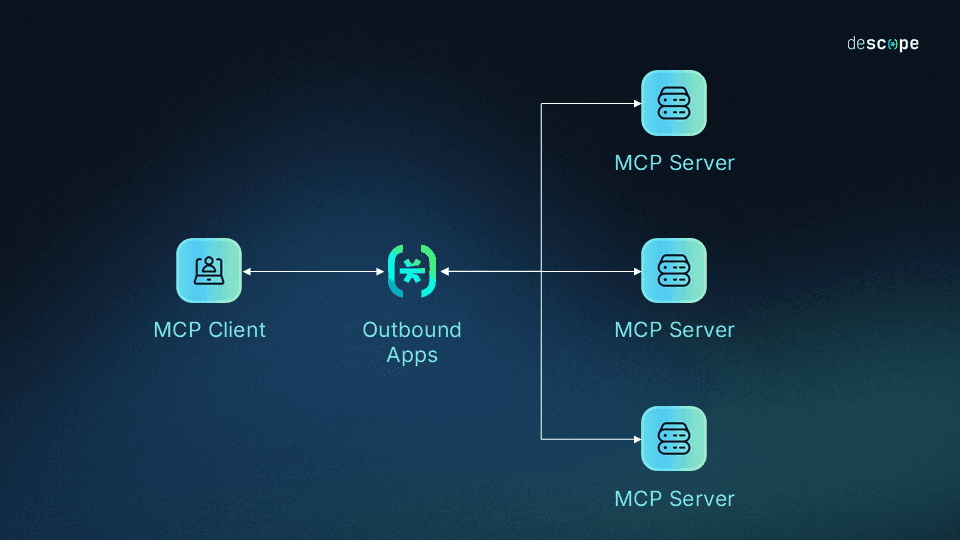
By accessing your Outbound Apps from the server-side of your MCP client, you can dynamically request and use tokens for any MCP server your app needs to communicate without the need for hardcoded tokens, manual storage, and bespoke integrations per server. This approach allows your MCP client to remain lightweight, while the Outbound App layer takes care of all authentication and authorization with each MCP server.
Inbound Apps + Outbound Apps
Outbound Apps works seamlessly with Inbound Apps to ensure secure, scoped, and scalable agent-to-app connectivity. Inbound Apps enable any API to be securely exposed to AI agents with user consent, and Outbound Apps enable AI agents to call these APIs on users’ behalf.
Let’s say your company has a customer relationship management (CRM) product called 10xCRM, and an AI agent called ConnectedAgent that can summarize deals and set up meetings on users’ behalf. To connect 10xCRM with ConnectedAgent, you simply:
Create an Inbound App for 10xCRM and define the scopes you’d like to be made available for other APIs or AI agents to interact with. This securely exposes the 10xCRM API by making it OAuth-compatible.
Create the consent screen the user will see when connecting ConnectedAgent with 10xCRM.
Create an Outbound App for 10xCRM that ConnectedAgent can integrate with. This provides an easy way for the AI agent to request scopes from the CRM while Descope manages and stores the tokens.
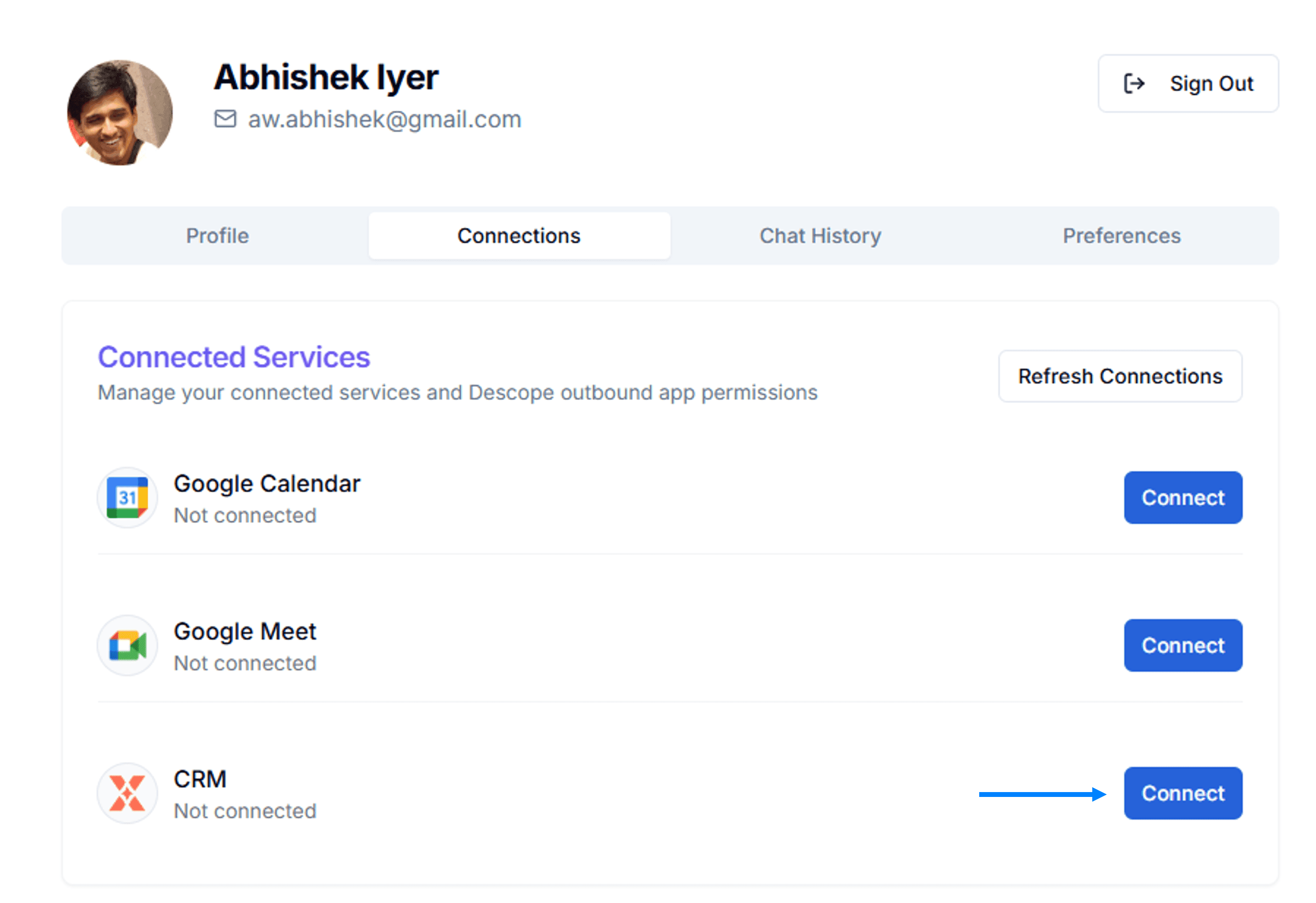
The experience for an end user is seamless. All they do is request to connect with 10xCRM while they’re on the connections page of the AI agent…
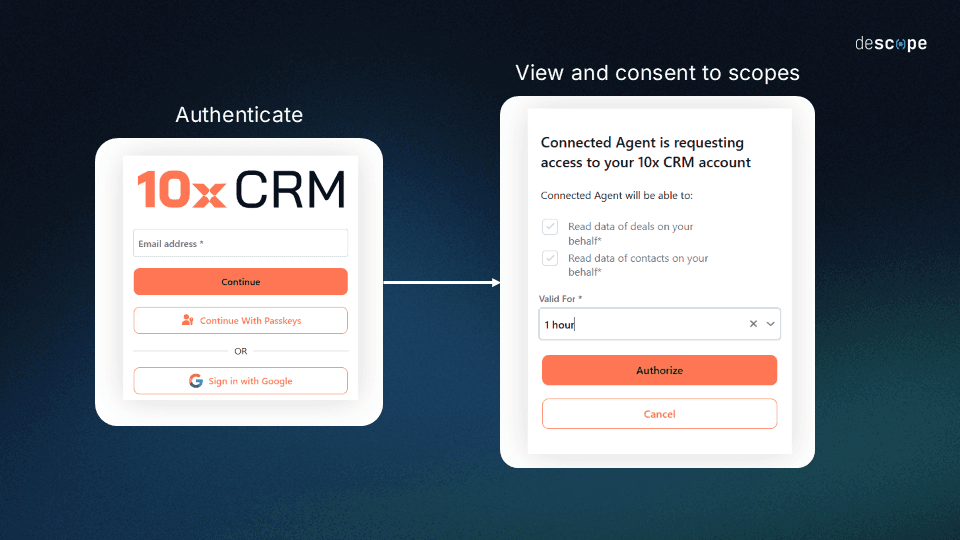
…authenticate with the external tool and view and approve the access being requested (including selecting the time they want the access to be granted for)...
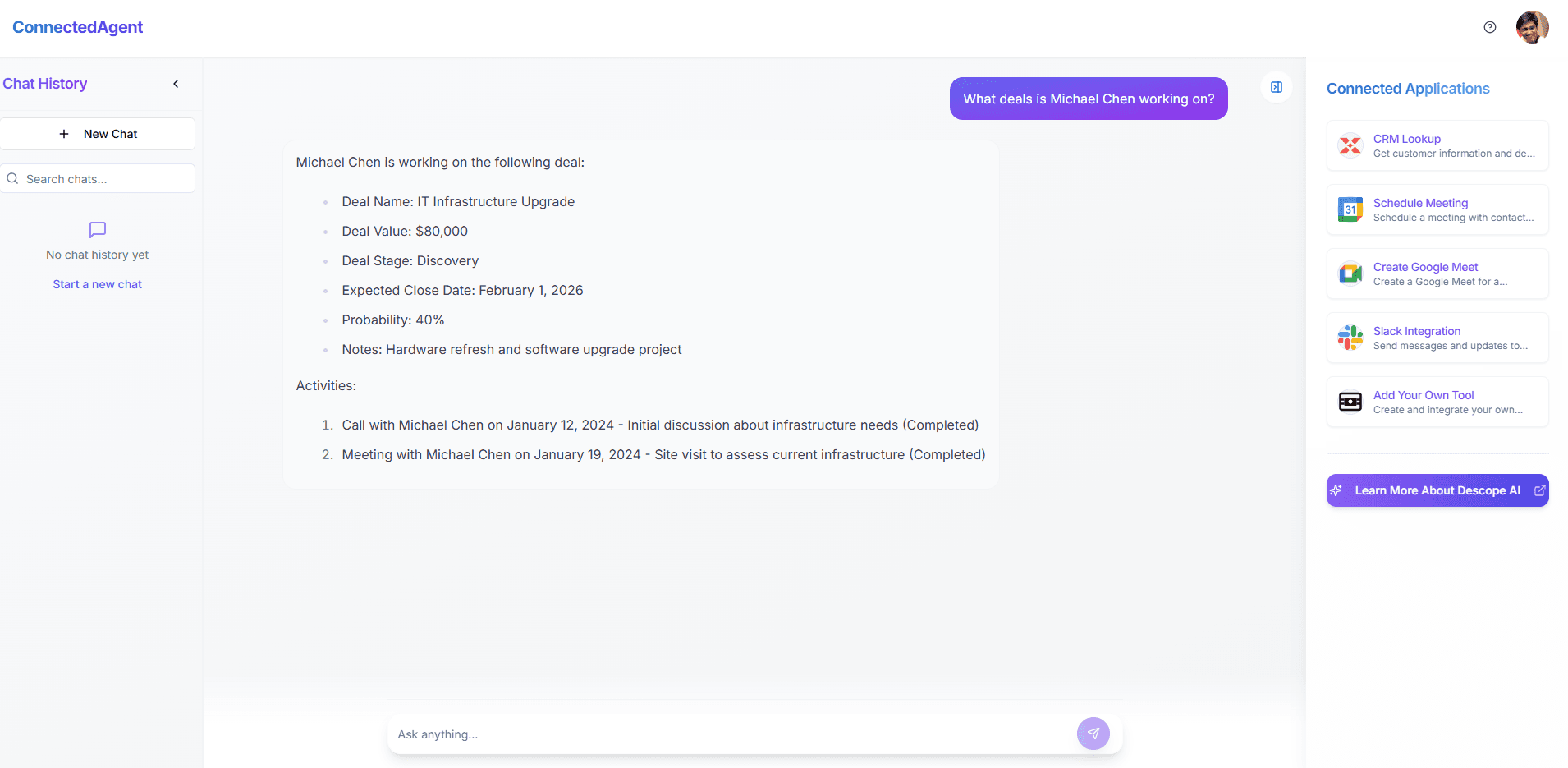
…and then freely use ConnectedAgent to retrieve contact and deal information from 10XCRM. In the example below, the AI agent calls external APIs from 10xCRM to summarize deals that Michael Chen is working on and list recent deal-related meetings that occurred.
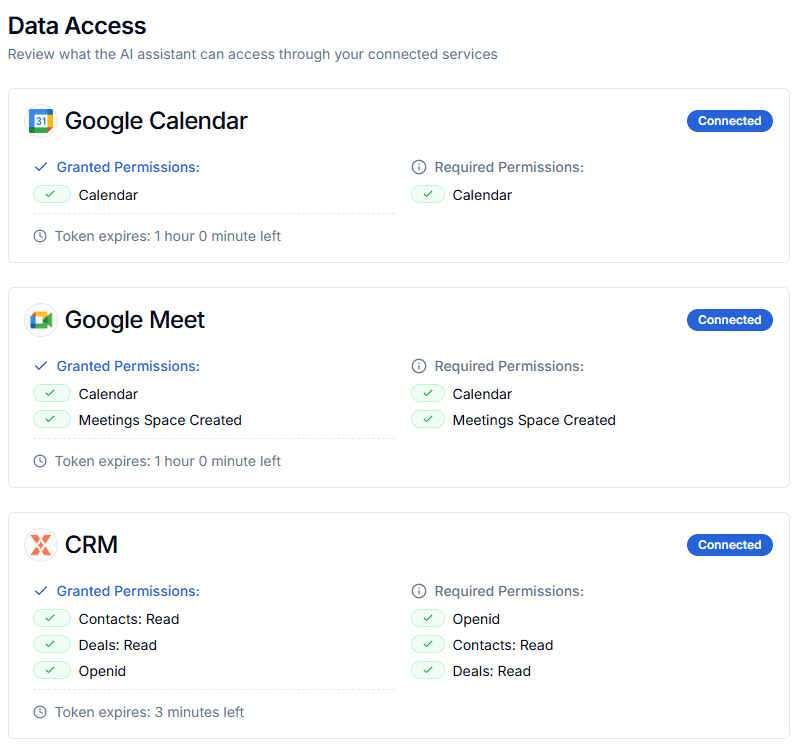
You can also empower users to view the scopes they granted to each external tool and how long they granted the scopes for.
Using Inbound Apps and Outbound Apps together can help your enterprise applications get agent-ready and your AI agents get enterprise-ready.
Conclusion
AI agent builders navigate tons of challenges to ensure their AI systems are secure, scalable, and trusted enough to be adopted by the majority of consumers or enterprises. Outbound Apps simplify the tooling and auth flows involved in connecting AI agents with external systems, helping developers focus more time on core AI initiatives instead.
Sign up for Descope to start using Outbound Apps today and keep up with our AI launches. Have questions? Book a demo with our auth experts to learn more.